Human-in-the-loop notifications: approve an AI agent from your phone
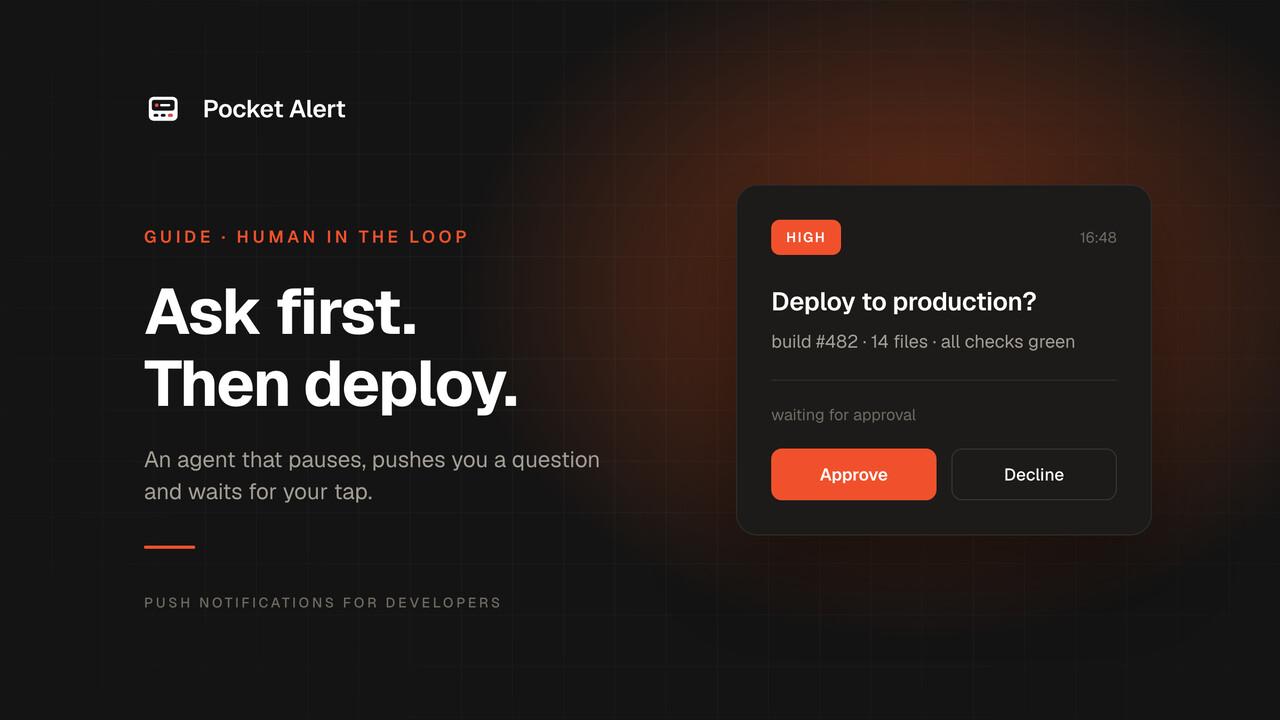
An agent that can deploy, refund, delete or email on its own is useful right up to the moment it does one of those things wrongly. The fix is not to stop it from acting. It is to make it ask first, and to make asking cheap enough that you actually answer.
Human-in-the-loop means exactly that: the agent stops at a checkpoint, a person approves or declines, and the agent continues with the answer. The hard part is not the logic. It is getting the question to you when you are not at the desk, and getting your answer back without a laptop.
This guide does it with a push notification that carries an Approve button. The agent sends it, waits, and reads your decision from a tiny endpoint the button calls.
How the loop works
Four moving parts, all small:
- The agent reaches a risky step and creates a request with a random ID.
- It sends a Pocket Alert push with two action buttons. Each button is an HTTP request to your approval endpoint, carrying that ID.
- You tap the push, read what the agent wants to do, and tap Approve or Decline. Your phone calls the endpoint directly.
- The agent polls the endpoint, sees the decision, and goes on, or stops.
If nobody answers before the timeout, the agent treats it as a no. An approval step that defaults to "yes" is a notification, not a safeguard.
What you need
- A Pocket Alert account on a paid plan. Action buttons are stripped from messages on the Free plan, so the push would arrive without them. Starter is $6 a month.
- An API key from API Keys, ideally a separate one for the agent.
- Somewhere to run a small HTTPS endpoint your phone can reach. The example uses a Cloudflare Worker, which is free at this volume; any server works.
Step 1. The approval endpoint
The endpoint does two things: records a decision when the phone calls it, and reports it when the agent asks. This Worker keeps decisions in Workers KV for an hour:
export default {
  async fetch(request, env) {
    if (request.headers.get('X-Approval-Secret') !== env.SECRET) {
      return new Response('forbidden', { status: 403 });
    }

    const [, action, id] = new URL(request.url).pathname.split('/');
    if (!/^[a-f0-9]{32}$/.test(id ?? '')) {
      return new Response('bad id', { status: 400 });
    }

    if (request.method === 'POST' && (action === 'approve' || action === 'decline')) {
      const existing = await env.DECISIONS.get(id);
      if (!existing) await env.DECISIONS.put(id, action, { expirationTtl: 3600 });
      return new Response(existing ?? action);
    }

    if (request.method === 'GET' && action === 'status') {
      return new Response((await env.DECISIONS.get(id)) ?? 'pending');
    }

    return new Response('not found', { status: 404 });
  },
};
Bind a KV namespace as DECISIONS, add a long random SECRET as a Worker secret, and deploy. Three details are deliberate:
- The first answer wins. A second tap, or a tap on the other button, cannot flip a decision that is already recorded. Pocket Alert does not block repeated taps on an
httpbutton, so the endpoint has to. - The secret travels in a header, set inside the button itself. The phone sends it, the agent sends it, nobody else has it.
- Decisions expire. An approval from yesterday should not unlock anything today.
Workers KV is eventually consistent, so the agent may not see a decision until 60 seconds or more after you tap. For an approval step that is fine; if you need it instant, any server with a database or a Durable Object does the same job.
Step 2. Ask from the agent
The helper below sends the push, polls for a decision and returns True only on an explicit approval. It works from any Python agent: a LangChain tool, an OpenAI Agents SDK function, a plain loop.
import json
import os
import time
import uuid

import requests

PUSH_API = "https://api.pocketalert.app/v1/messages"
APPROVALS = "https://approvals.YOUR_SUBDOMAIN.workers.dev"
SECRET = os.environ["APPROVAL_SECRET"]


def ask_human(title: str, details: str, timeout: int = 900) -> bool:
    request_id = uuid.uuid4().hex

    def button(label: str, action: str) -> dict:
        return {
            "type": "http",
            "label": label,
            "value": json.dumps({
                "url": f"{APPROVALS}/{action}/{request_id}",
                "method": "POST",
                "headers": {"X-Approval-Secret": SECRET},
            }),
        }

    requests.post(
        PUSH_API,
        headers={"Token": os.environ["POCKETALERT_API_KEY"]},
        json={
            "title": title,
            "message": details,
            "level": "high",
            "actions": [button("Approve", "approve"), button("Decline", "decline")],
        },
        timeout=10,
    ).raise_for_status()

    deadline = time.time() + timeout
    while time.time() < deadline:
        status = requests.get(
            f"{APPROVALS}/status/{request_id}",
            headers={"X-Approval-Secret": SECRET},
            timeout=10,
        ).text
        if status in ("approve", "decline"):
            return status == "approve"
        time.sleep(5)
    return False
Then put it in front of anything you would not want the agent to do unsupervised:
if ask_human("Deploy to production?", "build #482 · 14 files · all checks green"):
    deploy()
else:
    report("Deploy skipped: not approved")
level: "high" sends the push as time-sensitive, so it gets through Focus on iPhone and lands as a heads-up notification on Android. An approval you see an hour later is an approval the agent waited an hour for.
What you see on the phone
The push arrives with the title and details the agent wrote, and Approve and Decline right on the notification. Long-press it on iPhone or expand it on Android and tap one: the request goes out in the background, without opening the app, even if Pocket Alert is closed. The same buttons are inside the message in the app, where a toast shows the status code your endpoint returned.
Two platform details are worth knowing before you rely on this:
- If the request fails, because your endpoint returned an error or the phone had no network, a new notification appears with a Retry button. A request that may have reached your endpoint is never retried on its own, so a tap can't approve twice behind your back.
- System notification buttons need the Pocket Alert app 2.0.1 or later. On older versions the banner has no buttons and they wait inside the message. Your labels are shown as written on both platforms; if iOS can't prepare custom buttons in time, it falls back to a generic Run label for
http, and the button still works.
Where to put the checkpoints
Ask too often and you will start approving without reading. Good checkpoints are the actions that are hard to undo or cost real money:
- Deploys and database migrations on production
- Sending email, posting publicly, or messaging customers
- Refunds, purchases and anything that calls a payment API
- Deleting data, rotating keys, changing DNS or permissions
- Runs that will spend more than a set token or cloud budget
Everything else is better as a plain notification after the fact. The AI agent alerts page covers that side: finished, failed, stuck.
Doing it through MCP
If the agent runs in an MCP client, it can send the same push without the Python helper. The Pocket Alert MCP server exposes create_message with an actions parameter, so you can instruct the agent to call it with the two buttons and then check the status URL before continuing.
That works, with a caveat: the agent is now responsible for waiting, and a model told to wait for approval can still decide not to. For anything that matters, enforce the checkpoint in code the model cannot skip, like the helper above or a permission hook in Claude Code or Codex. Use the MCP route for the question and code for the gate.
Variations
- Single button. Send only Approve and let silence mean no. There is then nothing to mis-tap on the banner, and declining costs you nothing.
- Workflow tools. In n8n, a Wait node set to resume on a webhook call gives you a resume URL; put it in the Approve button and the workflow continues when you tap.
- Context in the push. Put the numbers in the message: the amount, the environment, the number of rows. You should be able to decide from the text alone.
- A view button. Replace Decline with a
viewbutton that opens the diff, the invoice or the run, and decline by not approving.
FAQ
Does approving work from the lock screen?
Yes. http buttons run from the lock screen without unlocking the phone, whether Pocket Alert is open, in the background or closed. On Android that needs a lock screen set to show notification content; if it hides content, the buttons appear after you unlock. If that is too easy for a risky action, put the decision behind a view button that opens a page you have to sign in to instead; opening a page asks to unlock first.
Is it secure?
The button's request goes from your phone straight to your endpoint; Pocket Alert does not proxy it or see the response. Protect the endpoint with a secret header, use a random ID per request, accept only the first answer, and expire decisions. Messages, including button configuration, are encrypted at rest.
What happens if I never answer?
The helper returns False after the timeout, 15 minutes by default, and the agent should treat that as declined. Pick a timeout that matches how long the task can sensibly wait.
Can several people approve?
Every device on the account gets the push, and the first tap wins. For per-person approvals, send each person their own push with a separate request ID and decide in the endpoint how many approvals you need.
Does it work on Android and iPhone?
Yes, both, with your own labels on the notification and inside the message. System notification buttons need app version 2.0.1 or later.
Get an API key, deploy the endpoint, and give your agent a way to ask before it acts.