Shopify order notifications: a phone push for every new order
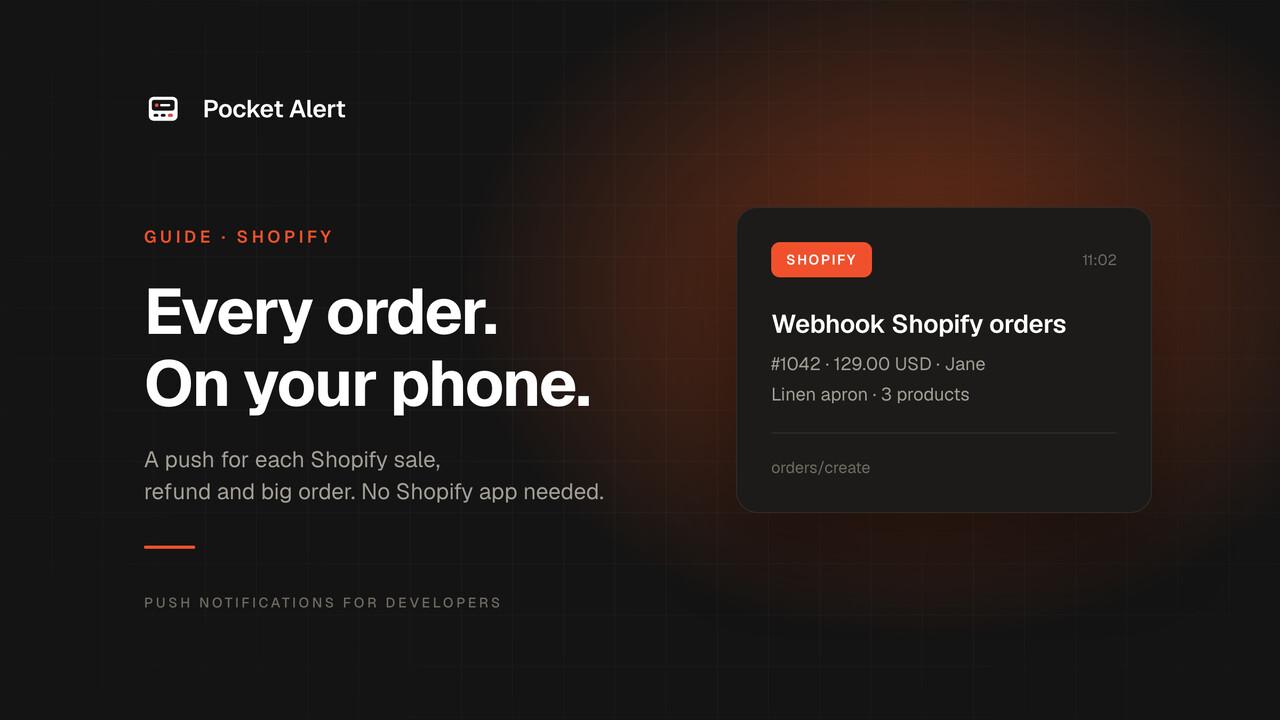
A new order is the one event every store owner wants to hear about right away. In the early days you check the admin twenty times a day. Later you have a packer, a partner who handles support, a supplier who ships some products for you, and they all want to know about a sale before the customer starts asking where it is.
Shopify already gives you two ways to hear about orders, and they are worth knowing before you add anything. This guide covers both, then sets up a Pocket Alert push for each order with one webhook in the Shopify admin. It takes about five minutes and you don't install anything in your store.
What Shopify gives you out of the box
The Shopify app. On iPhone and Android, the Shopify app can send a push for new orders: in the app, open Settings → Notifications (Store notifications on Android) and turn on push for orders. On iPhone it can also show the number of open orders as a badge. It works well for you. The catch is that everyone who wants these pushes has to log in to the Shopify app as a staff member with access to orders.
Staff notification emails. In Settings → Notifications → Staff notifications, Shopify sends a "New order" email to the store owner by default, and you can add recipients: a staff member or any email address. It is free and reliable, but it is email. It sits next to newsletters and receipts, and no one gets a sound for it.
If either of these is enough, stop here. A Pocket Alert push is worth adding when you want something they don't do:
- Phones without a Shopify seat. The push goes to every phone signed in to your Pocket Alert account, on iOS or Android. A packer or a partner doesn't need a staff account in your store.
- Levels. Routine orders can arrive quietly and a big order can break through Focus. Each level has its own Android notification channel, so you can mute one and keep the other.
- A history you can search. Every push stays in the app, and the console keeps a log of every request Shopify sent, which helps when an order seems to be missing.
- One app for everything. Orders land in the same feed as your Stripe payments, uptime checks and server alerts.
- Buttons. A push can carry an Open order button that goes straight to the order in the admin.
What you need
- A Shopify store and access to Settings → Notifications.
- A Pocket Alert account and the app on your phone. The Free plan works for this guide: 50 messages a day, one device and one webhook. Buttons, more devices and more webhooks are on paid plans.
Step 1: create the Pocket Alert webhook
In the console, open Webhooks and create a webhook:
- Name:
Shopify orders. Pocket Alert uses it for the push title, which will read "Webhook Shopify orders". - Default priority:
Defaultfor now. - Message: the template below.
%name% · %total_price% %currency% · %customer.first_name%
%line_items.0.title% · %line_items.#% products
Each %...% is a path into the JSON that Shopify sends. These are real fields of the orders/create payload:
nameis the order name as customers see it, such as#1042. (order_numberis the same number without the#.)total_priceandcurrencyare the order total and the store currency.customer.first_nameis the customer's first name. Orders with no customer attached, such as some POS sales, leave it blank.line_items.0.titleis the first product, andline_items.#counts the order's lines. That is the number of different products, not the total quantity.
Save the webhook and copy its receive URL. It looks like https://p4a.me/wh/abc123....
Step 2: add the webhook in Shopify
- In the Shopify admin, go to Settings → Notifications.
- Click Webhooks, then Create webhook.
- Event:
Order creation. You can't change the event later. - Format:
JSON. Pocket Alert only accepts JSON; with XML you get no push. - URL: your
https://p4a.me/wh/...receive URL. - Webhook API version: pick the newest stable version in the list. The fields used here are in every recent version.
- Click Save.
The same screens exist in the Shopify mobile app, under Settings → Notifications → Webhooks in the Store settings section, if you are away from a computer.
Now click the ... menu on the new webhook and choose Send test. Shopify sends a sample order, and within a second your phone shows:
Webhook Shopify orders
#9999 · 404.95 USD · John
Aviator sunglasses · 5 products
That is Shopify's sample data. Your next real order arrives the same way with real values.
Step 3: make it better
Pick a level
Shopify's payload has no level field, so every push takes the webhook's default priority. Choose it by how many orders you get:
- A few orders a day:
High. On iPhone it is time-sensitive and gets through Focus. - Dozens a day:
Low. They collect in the app quietly and you read them when you want, while other alerts stay loud.
Change it any time by editing the webhook in the console. The priority levels docs explain what each level does on iOS and Android.
Add an Open order button
A Shopify admin order URL looks like https://admin.shopify.com/store/<store>/orders/<id>, where <store> is the part before .myshopify.com and <id> is the order's numeric id, which the webhook payload includes. That is enough for a button.
The console has no field for buttons yet, so set them with one API call. You need an API key from API Keys. Find the webhook's tid:
curl -s https://api.pocketalert.app/v1/webhooks -H 'Token: YOUR_API_KEY' \
  | jq -r '.[] | "\(.tid)  \(.name)"'
Then add the button, replacing your-store with your store handle:
curl -X PUT https://api.pocketalert.app/v1/webhooks/WEBHOOK_TID \
  -H 'Token: YOUR_API_KEY' \
  -H 'Content-Type: application/json' \
  -d '{"actions": "[{\"type\":\"view\",\"label\":\"Open order\",\"value\":\"https://admin.shopify.com/store/your-store/orders/%id%\"}]"}'
actions is a JSON string, which is why the inner quotes are escaped. The %id% placeholder is filled from each order. On Android the button reads "Open order"; iOS shows a standard Open label for this type of button. Buttons are a paid feature. On the Free plan the push still arrives, just without the button.
Cancellations and refunds
Shopify has separate events for these. Create a Pocket Alert webhook for each (the Free plan has one webhook, the Starter plan has five), then add a Shopify webhook with the matching event:
| Shopify event | Pocket Alert name | Template |
|---|---|---|
| Order cancellation | Shopify cancelled | %name% cancelled · %cancel_reason% · %total_price% %currency% |
| Refund create | Shopify refund | Refund %transactions.0.amount% on order %order_id% · %note% |
The refund payload doesn't include the order name, only the numeric order_id, so the same Open order button with %order_id% in place of %id% is the quickest way to see which order it was. A refund can have more than one transaction; the template shows the first. Set the refund webhook to High so it stands out from sales.
Big orders and low stock with Shopify Flow
A Pocket Alert template can show fields but can't compare them, so it can't decide that an order of 500 is louder than an order of 20. Shopify Flow can. It is a free Shopify app, and its Send HTTP request action is available on the Grow, Advanced and Plus plans. On the Basic plan, Flow is available but this action isn't, so this section won't work there.
Flow can call the Pocket Alert API directly, which lets you set your own title, a level and a button. First, in Flow → Settings, add a secret with the handle pocketalert and your API key as the value.
A loud push for big orders
- New workflow, trigger Order created.
- Condition:
order.totalPriceSet.shopMoney.amountis greater than or equal to500. - Action Send HTTP request:
- Method:
POST - URL:
https://api.pocketalert.app/v1/messages - Headers:
Token={{secrets.pocketalert}},Content-Type=application/json - Body:
- Method:
{
  "title": "Big order {{order.name}}",
  "message": "{{order.totalPriceSet.shopMoney.amount}} {{order.totalPriceSet.shopMoney.currencyCode}} · {{order.customer.firstName}}",
  "level": "high",
  "actions": [
    {"type": "view", "label": "Open order",
     "value": "https://admin.shopify.com/store/your-store/orders/{{order.legacyResourceId}}"}
  ]
}
Flow variables use the GraphQL Admin API names, which is why they are camelCase here and snake_case in the webhook template. legacyResourceId is the same numeric ID the webhook calls id.
A good combination: keep the regular webhook on Low and let Flow send the big ones on High. For an order where someone must act now, use critical. On paid plans it gets through Do Not Disturb; on Free it is sent as high.
Low stock
Use the trigger Product variant inventory quantity changed with two conditions, so you get one push when stock crosses the line rather than one for every sale below it:
productVariant.inventoryQuantityis less than5inventoryQuantityPrioris greater than or equal to5
Then the same HTTP request action, with this body:
{
  "title": "Low stock: {{product.title}}",
  "message": "{{productVariant.title}}: {{productVariant.inventoryQuantity}} left",
  "level": "default"
}
One caution for both bodies: Flow inserts values as they are. A product title with a double quote in it produces invalid JSON, and the API rejects the request. Keep titles plain or leave that field out.
Honest limits
- Pocket Alert doesn't check Shopify's signature. Shopify signs each webhook with an HMAC header. Pocket Alert accepts any JSON sent to your receive URL, so the URL itself is the secret. Don't post it anywhere public. If you need the signature checked, put a small function in between that verifies it and then calls the Pocket Alert API.
- The Free plan stops at 50 messages a day. After that, Pocket Alert answers Shopify with an error until the limit resets. Shopify retries failed deliveries, and if a webhook keeps failing, Shopify deletes it. If you get more than about 40 orders a day, use a paid plan or the webhook may disappear.
- Webhook titles are fixed. A webhook push is always titled "Webhook" plus the webhook's name. To set your own title, use Flow and the API as shown above.
- iOS button labels are generic. Android shows your label, iOS shows Open.
If nothing arrives
- Open the webhook history in the console. Every request Shopify sent is there, with headers, body, the rendered message and the status. If the list is empty, Shopify didn't call the URL: check that it was pasted in full.
- Look for "Invalid JSON". The Shopify webhook format is set to XML. Edit the webhook in Shopify and switch the format to JSON.
- Empty fields in the push. The path is wrong or the field is missing from that order. Compare the template with the body in the history; for example,
customercan be empty on POS orders. - The webhook vanished from Shopify. It failed too many times in a row, usually because of a wrong URL or the daily limit. Fix the cause and add it again.
- Flow request failed. Open the workflow's run log. A 401 means the secret has the wrong key; a 400 usually means the body isn't valid JSON.
FAQ
Does this work with the Shopify Basic plan?
Yes. The main setup only uses the webhooks page in Settings → Notifications. Only the Flow section needs the Grow, Advanced or Plus plan.
Can my staff get order pushes without a Shopify account?
Yes. The push goes to the phones signed in to your Pocket Alert account, and Shopify isn't involved past sending the webhook. The Free plan allows one device; paid plans allow more.
Can I send orders from two stores?
Create a webhook for each store and give each its own name, like "Shopify EU" and "Shopify US". The name appears in the push title, so you can tell them apart, and you can send each to a different Pocket Alert application.
What about Stripe or WooCommerce?
Stripe has its own guide: Stripe payment notifications. For other platforms, the ecommerce order alerts page shows the same pattern, and any service that sends a JSON webhook works with the webhook tool.
Create a free account, paste one URL into Shopify, and hear the next order on your phone.