SSH login alerts on your phone: a PAM hook that also catches scp, sftp and port forwards
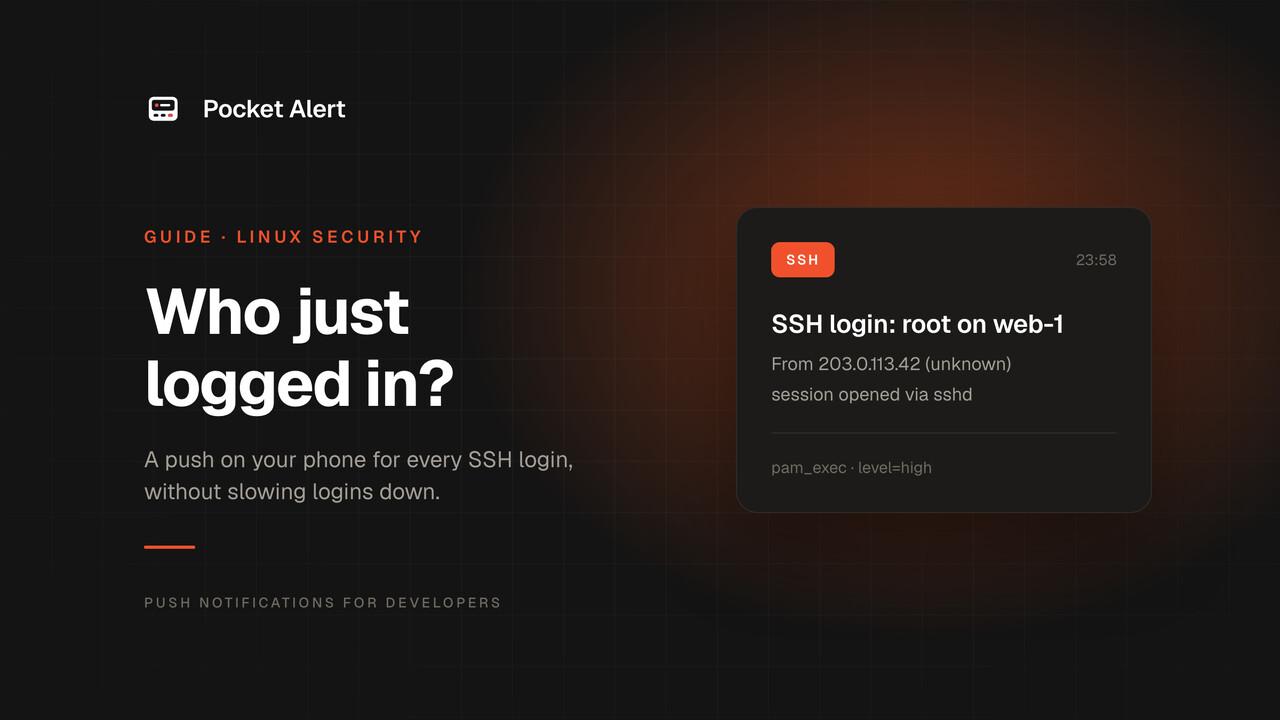
If someone logs into your server with a stolen key or a guessed password, the login itself is often the only moment you could have noticed. After that they look like any other user. A push on your phone for every SSH session gives you that moment: you either recognise the login, or you know within seconds that something is wrong.
This is detection, not prevention. It won't stop anyone from getting in. It makes sure you hear about it while you can still do something.
The guide uses PAM, the layer every SSH login already goes through. It was tested on Debian 12 and 13, Ubuntu 24.04 and Rocky Linux 9, against a fake API that recorded every request.
Why not /etc/profile, .bashrc or sshrc
The snippet most people copy is a curl call in /etc/profile, ~/.bashrc or /etc/ssh/sshrc. We tested what each of them actually sees:
/etc/profileruns only for login shells. In our tests,ssh host cmd,scp,sftp,rsyncandssh -Nall logged in without running it.~/.bashrcbelongs to the user. Anyone with that account can edit it, andssh host bash --norcskips it./etc/ssh/sshrcis better: it ran for commands, scp, sftp and rsync. But it runs as the user who logged in, so the API key has to be readable by every account. And if the user has a~/.ssh/rc, sshd runs that instead andsshrcnever runs.- None of them see
ssh -N. A port forward or a SOCKS proxy over SSH opens no shell, so nothing runs.
All of these run inside the session, as the user, after the attacker is already in. A PAM hook runs inside sshd, as root, before the session starts.
How PAM sees an SSH login
With UsePAM yes (the default on all four distributions), sshd opens a PAM session right after authentication succeeds. That happens before the client asks for a shell, a command or sftp. So the hook fires for every authenticated connection, ssh -N included, and it can't tell an interactive shell from an rsync: PAM_TTY is just ssh even when you get a terminal. A multiplexed connection (ControlMaster) opens one PAM session, however many commands run over it.
pam_exec runs a command at that point. Here is what we confirmed on the test machines:
- For sshd, the command runs as root.
pam_execwaits for the command to exit, and the login waits with it. A slowcurlhere means a slow login.- Its output goes to
/dev/nullunless you add thestdoutoption, so nothing can leak into a session. - Its environment is the PAM environment, not root's. There is no
PATHon Debian or Rocky.
These are the variables the script uses:
| Variable | Example | Where it comes from |
|---|---|---|
PAM_TYPE | open_session | Also close_session at logout |
PAM_SERVICE | sshd | The PAM file in use |
PAM_USER | root | The account that logged in |
PAM_RHOST | 198.51.100.23 | The client address (an IP, with sshd's default UseDNS no) |
SSH_AUTH_INFO_0 | publickey ssh-ed25519 AAAA... | Set by sshd: the method and the public key that was accepted |
SSH_AUTH_INFO_0 was present on every distribution we tried, without ExposeAuthInfo. It means the push can name the key that was used, not only the account.
What you need
- A Linux server running OpenSSH. Check that PAM is on:
sudo sshd -T | grep -i usepamshould printusepam yes. curlandjq:sudo apt install curl jq, orsudo dnf install jqon Rocky, Alma and RHEL (curl is already installed there).- The Pocket Alert app on iPhone or Android and an API key from API Keys. Create a separate key for each server, so you can revoke one without touching the others.
The script
#!/bin/bash
# /usr/local/sbin/pa-ssh-login
# Run by pam_exec when a session opens. It must never slow down or break a login.
PATH=/usr/sbin:/usr/bin:/sbin:/bin
CONF=/etc/pa-ssh-login.conf

[ "$PAM_TYPE" = open_session ] || exit 0
[ "$(stat -c '%u %a' "$CONF" 2>/dev/null)" = "0 600" ] || exit 0
# shellcheck source=/dev/null
. "$CONF"
[ -n "$POCKETALERT_API_KEY" ] || exit 0

host=$(uname -n)
if [ "$PAM_SERVICE" = sshd ]; then
  who=${PAM_USER:-unknown}
  from=${PAM_RHOST:-unknown}
  title="SSH login: $who@$host"
  auth=${SSH_AUTH_INFO_0%%$'\n'*}
  case $auth in
    publickey\ *) auth="Key: $(ssh-keygen -lf - <<<"${auth#publickey }" 2>/dev/null | awk '{print $2, $NF}')" ;;
    '') auth="Method: unknown" ;;
    *) auth="Method: ${auth%% *}" ;;
  esac
  message="From $from"$'\n'"$auth"
else
  who=${PAM_RUSER:-unknown}
  from=local
  title="$PAM_SERVICE on $host: $who as ${PAM_USER:-unknown}"
  message="Terminal: ${PAM_TTY:-none}"
fi

level=${PA_UNKNOWN_LEVEL:-high}
read -ra rules <<<"${PA_KNOWN:-}"
for rule in "${rules[@]}"; do
  # shellcheck disable=SC2053 # user@address, both halves are glob patterns on purpose
  if [[ $who == ${rule%@*} && $from == ${rule##*@} ]]; then
    level=${PA_KNOWN_LEVEL:-low}
    break
  fi
done
[ "$level" = none ] && exit 0

ip=
[[ $from =~ ^[0-9A-Fa-f:.]+$ ]] && ip=$from

json=$(jq -n --arg title "$title" --arg message "$message" --arg level "$level" --arg ip "$ip" '
  {title: $title, message: $message, level: $level}
  + (if $ip == "" then {} else {actions: [
      {type: "copy", label: "Copy IP", value: $ip},
      {type: "view", label: "Look up IP", value: ("https://ipinfo.io/" + $ip)}
    ]} end)') || exit 0

{
  printf 'header = "Token: %s"\n' "$POCKETALERT_API_KEY" |
    curl -fsS -o /dev/null --connect-timeout 5 --max-time 15 -K - \
      -H 'Content-Type: application/json' --data-binary "$json" \
      "${POCKETALERT_API_URL:-https://api.pocketalert.app/v1/messages}" ||
    logger -t pa-ssh-login "push failed, curl exit code $?"
} </dev/null >/dev/null 2>&1 &

exit 0
sudo install -m 0755 -o root -g root pa-ssh-login /usr/local/sbin/pa-ssh-login
What it does, and why:
- The HTTP call runs in the background. The script starts
curland exits right away, sopam_execstops waiting. With the API answering normally, after 4 seconds, or not at all (an address that drops packets),ssh host truetook between 0.15 and 0.36 seconds every time on Debian 12 and Rocky 9. Acurlthat can't connect gives up after 15 seconds at most, and the failure goes to syslog aspa-ssh-login: push failed, curl exit code 7. - It always exits 0, and every output is redirected, so the session sees nothing. The output of an interactive login and of
ssh host cmdwas identical with and without the hook, apart from the time in the "Last login" line. - The key never appears on a command line.
curlreads theTokenheader from its standard input (-K -). Arguments are visible to every local user inps. While a request was hanging, the key wasn't in any process's/proc/<pid>/cmdline. - Untrusted values go into JSON through
jq --arg. We ran the script with a username, address, service and key info full of quotes, backslashes, newlines,$(id), control characters and invalid UTF-8. Every request body was valid JSON, and nothing was executed. - The buttons are added only for an IP address. The API rejects the whole message with
400if aviewbutton doesn't hold a valid URL. A strangePAM_RHOSTshould still get you the alert, just without buttons. - Patterns are matched per half.
user@addressis split at the last@, and each side is compared on its own. Joining them into one string would let an account named[email protected]match*@10.8.0.*while connecting from anywhere.
A login from an unknown address arrives like this, at high, so it gets through Focus on iPhone:
SSH login: root@web-1
From 198.51.100.23
Key: SHA256:iZtVU4EwMulogUeoneZkIXA9eeQfCvpyRB66QrrxBRA (ED25519)
To see which key that is, run ssh-keygen -lf ~/.ssh/authorized_keys on the server. It prints the same fingerprints, with the comments.
The config file
The key goes in a file only root can read. The script refuses to load it unless it is owned by root with mode 600, because the script sources it as shell code. Type the key at a hidden prompt, so it doesn't end up in your shell history:
sudo bash -c 'umask 077; read -rsp "API key: " k; echo; printf "POCKETALERT_API_KEY=%s\n" "$k" > /etc/pa-ssh-login.conf'
sudo tee -a /etc/pa-ssh-login.conf >/dev/null <<'EOF'
PA_KNOWN="*@203.0.113.10 [email protected].*"
PA_KNOWN_LEVEL=low
PA_UNKNOWN_LEVEL=high
EOF
sudo stat -c '%U %a' /etc/pa-ssh-login.conf   # root 600
PA_KNOWN lists the logins you expect, as user@address glob patterns separated by spaces. In the example, any account from your VPN exit at 203.0.113.10 is expected, and so is deploy from the CI subnet. They arrive as low: in the feed, without a sound. Everything else is PA_UNKNOWN_LEVEL. On a paid plan you can set that to critical, which plays through the silent switch and Do Not Disturb. On the Free plan, critical is delivered as high. See priority levels for what each level does on iOS and Android.
Patterns are globs, not CIDR: 198.51.100.* covers a /24, and other ranges need more than one pattern. Set PA_KNOWN_LEVEL=none to send nothing at all for expected logins.
Count your logins before you leave that at low. The Free plan allows 50 messages a day, and every SSH connection is one message. A CI job that runs rsync every 15 minutes uses 96 of them. Give such sources none, or move to a paid plan. Once the daily limit is reached, the API refuses messages until 00:00 UTC, and that would include the one login you care about.
Hook it into PAM, at the top
This part matters more than the script. Keep a root shell open in another terminal while you change PAM, so a typo can't lock you out. sshd reads its PAM file on every connection, so there is nothing to restart.
sudo cp /etc/pam.d/sshd /root/pam.d-sshd.bak
sudo sed -i '0,/^session/s|^session|session    optional     pam_exec.so quiet type=open_session /usr/local/sbin/pa-ssh-login\n&|' /etc/pam.d/sshd
sudo grep -n -m2 '^session' /etc/pam.d/sshd
On Debian, the last command prints:
19:session    optional     pam_exec.so quiet type=open_session /usr/local/sbin/pa-ssh-login
20:session [success=ok ignore=ignore module_unknown=ignore default=bad]        pam_selinux.so close
That puts the line above the first session line, not at the end of the file where most guides add it. The reason is in Debian 12's and Ubuntu 24.04's /etc/pam.d/sshd:
session required pam_env.so user_readenv=1 envfile=/etc/default/locale
user_readenv=1 loads variables from the user's own ~/.pam_environment into the PAM environment. Any pam_exec line below it passes them to the command it runs. The pam_exec man page warns about it: "Commands called by pam_exec need to be aware of that the user can have control over the environment."
We checked what that means on Ubuntu 24.04. With the hook at the end of the file, a normal user wrote LD_PRELOAD /tmp/x.so into ~/.pam_environment and logged in. The library was loaded into the root script, and into every program it ran, as uid 0. That is a root shell for anyone who can log in over SSH. With the hook at the top, the variable wasn't there. Debian 13 and Rocky 9 don't set user_readenv, but putting the hook first costs nothing there either. The same applies to any pam_exec line you already have below pam_env.
The options on the line:
optional: if the script is missing or fails, the login goes ahead. We renamed the script and logged in. It worked, with nothing printed.type=open_session:pam_execdoesn't run the script at logout at all. That matters for the same reason as the position: at logout,pam_envhas already run, and in our test theLD_PRELOADfrom~/.pam_environmentwas back in the environment.quiet: if the command fails,pam_execdoesn't print its exit status to the user.
On RHEL-family systems the line ends up above pam_selinux.so close, so it runs in sshd's SELinux context. Our tests ran in containers without SELinux enforcing. If pushes don't arrive on an enforcing system, check sudo ausearch -m avc -ts recent.
Package upgrades can replace /etc/pam.d/sshd, or leave a .dpkg-dist or .rpmnew copy next to it. After an OpenSSH upgrade, check that the line is still there.
Test it
You can call the script by hand, the same way pam_exec does:
sudo env PAM_TYPE=open_session PAM_SERVICE=sshd PAM_USER=test PAM_RHOST=203.0.113.9 /usr/local/sbin/pa-ssh-login
A push titled SSH login: test@<hostname> should arrive within a few seconds, with Method: unknown, since there was no real SSH login. If you want to see the request first, add POCKETALERT_API_URL=http://<your test endpoint> to the config, and remove it when you're done.
Then log in from somewhere that isn't in PA_KNOWN. On the test machines, these each produced one push: an interactive shell, ssh host cmd, scp, sftp, rsync, a password login, and ssh -N.
Optional: su and sudo
The same script can report su and sudo, through their own PAM files. They need one more option:
for f in su sudo; do
  sudo sed -i '0,/^session/s|^session|session    optional     pam_exec.so quiet seteuid type=open_session /usr/local/sbin/pa-ssh-login\n&|' /etc/pam.d/$f
done
Without seteuid, pam_exec runs the command with the real user ID of the calling process. For su and sudo that is the user who typed the command, not root. On our test machines the script ran as uid 1000, couldn't read the config file, and sent nothing. With seteuid it runs as root, and the push looks like sudo on web-1: alice as root.
For these services the script matches PA_KNOWN against the user who ran the command, with local as the address. alice@local quiets Alice's own sudo. root@local quiets scripts that run as root and switch to another user with su, which also produce a push.
Think about volume before you add sudo. Every sudo command opens a session, so every one of them is a push. On a server where people use sudo all day, hooking only su is usually enough.
The buttons
On paid plans each SSH push has two action buttons: Copy IP puts the address on the clipboard for a firewall rule or a log search, and Look up IP opens it on ipinfo.io, so you can see whether it is your provider or a hosting network on another continent. On the Free plan the server removes the buttons, and the push itself is delivered as usual.
What this doesn't cover
- Failed logins. PAM sessions open only after authentication succeeds. Password guessing is a job for fail2ban, or for a check of sshd's log in the journal.
- Anything after the login. Someone who gets root can delete the line from
/etc/pam.d/sshd. They can't take back the push for the login that got them in: the request is already on its way before their shell starts. - Logins that don't go through sshd's PAM stack. That includes the local console, other remote access services, and sshd with
UsePAM no. - Telling a shell from a file transfer. As explained above, PAM doesn't know yet. The address and the key are usually enough to tell your CI job from a person.
That covers the moment someone gets in. For other server events worth a push, see security alerts.